Email· 11 steps
How to set up email in Outlook (Windows)
If you'd like to read your email in a program such as Outlook, follow these steps. You'll need your email address, password and the server details we sent you. The screenshots show Outlook in Portuguese, but the steps are the same in English.
- 1
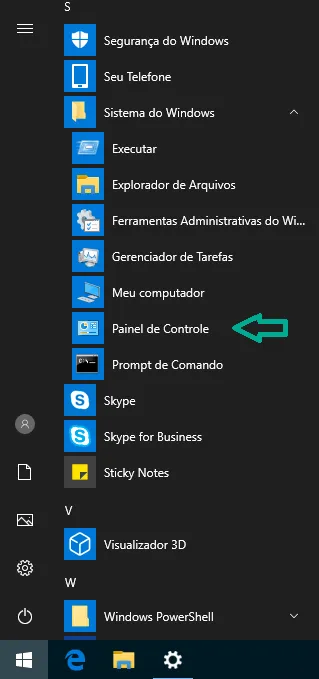
Open the Windows Control Panel.
- 2
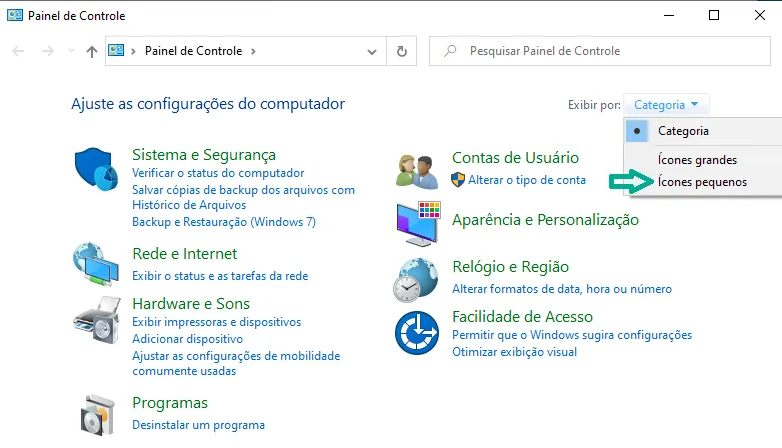
Change the view to small icons.
- 3
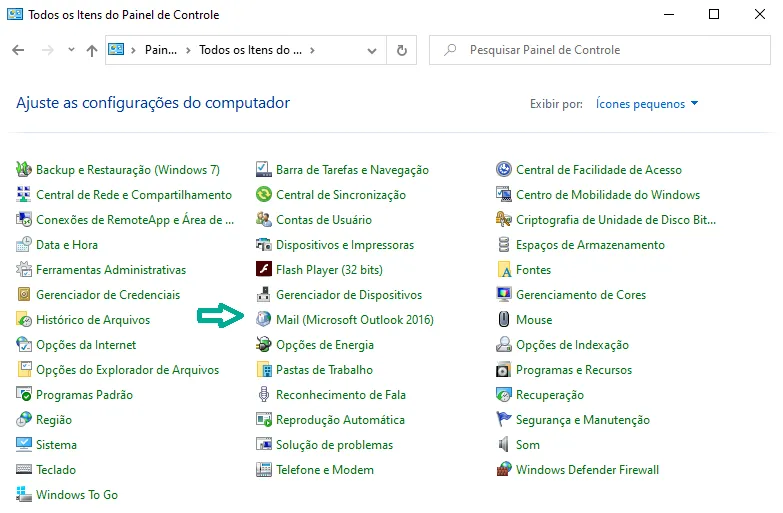
Open Mail.
- 4
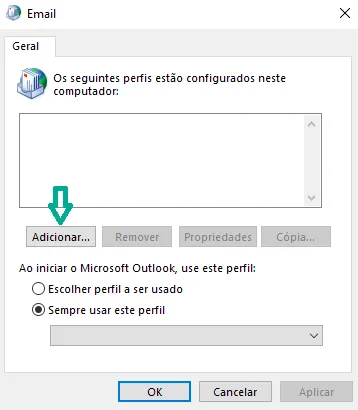
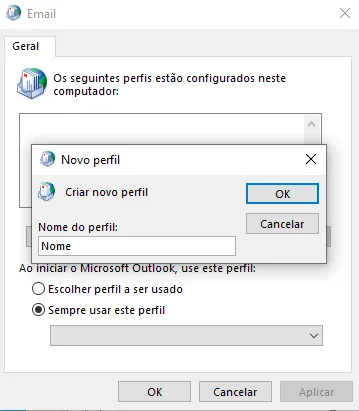
Click Show Profiles and add a new profile. If you already have one, you can use it.
- 5
Give the new profile a name.
- 6
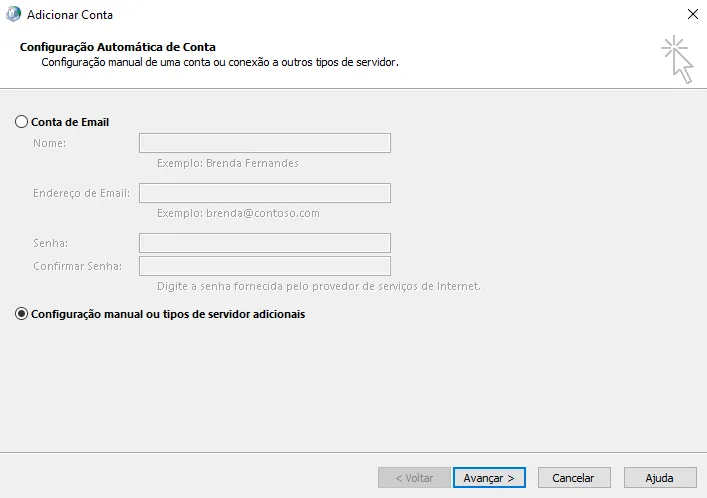
Choose Manual setup or additional server types.
- 7
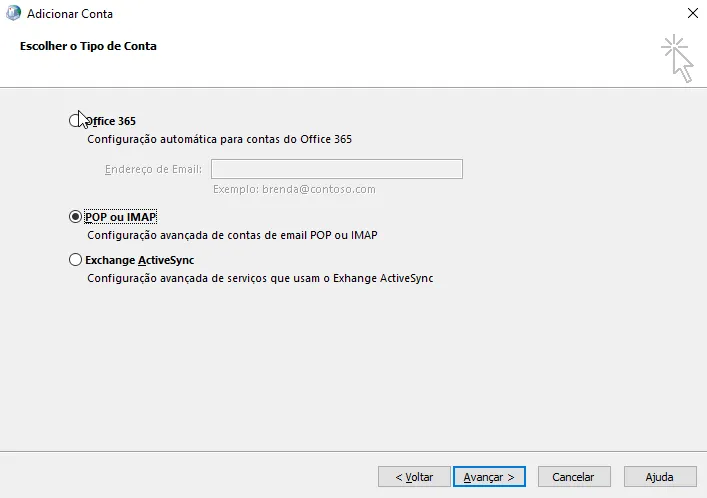
Choose POP or IMAP.
- 8
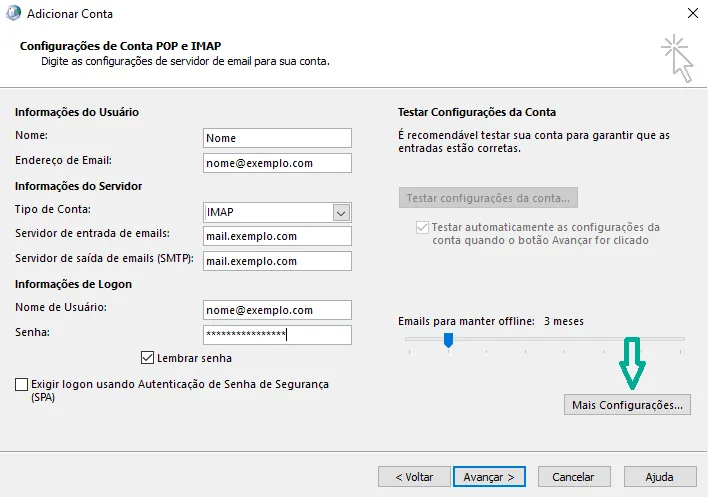
Fill in the fields carefully (name, email, servers, username and password) and click More Settings.
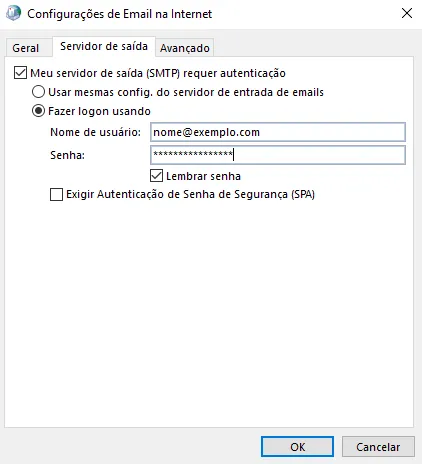
- 9
On the Outgoing Server tab, enable authentication as shown.
- 10
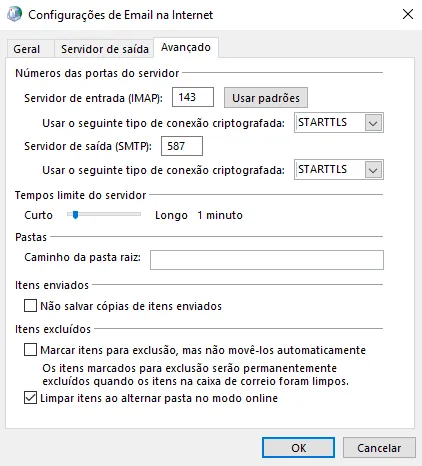
On the Advanced tab, enter the ports and encryption type as shown.
- 11
Click OK and, back in the previous window, Next to finish setting up the account.
Settings
Use the details we sent you when we created the account. The usual values are:
- Username: your full email address (e.g. name@yourdomain.com)
- Incoming server (IMAP): mail.yourdomain.com · port 993 (SSL/TLS) or 143 (STARTTLS)
- Outgoing server (SMTP): mail.yourdomain.com · port 465 (SSL/TLS) or 587 (STARTTLS)
- Authentication: normal password, with the same username and password as incoming