Email· 6 steps
How to set up email in Mail (macOS)
If you'd like to read your email in the Mac's Mail app (or a similar program), follow these steps. The screenshots show macOS in Portuguese, but the steps are the same in English.
- 1
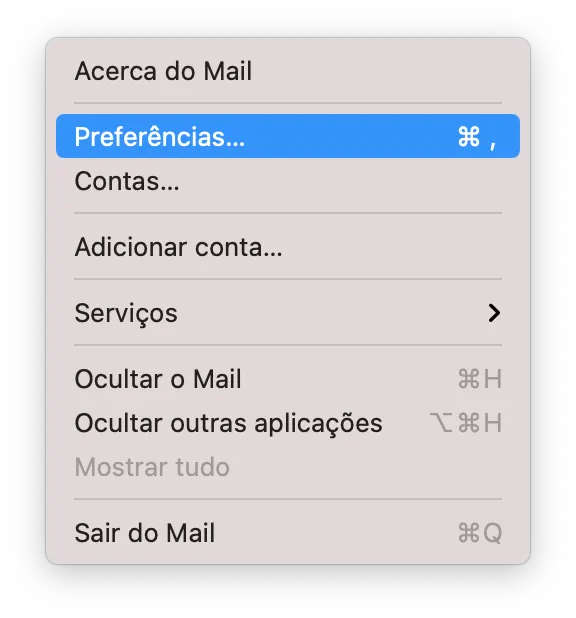
Click the Mail menu and choose Settings (or Preferences).
- 2
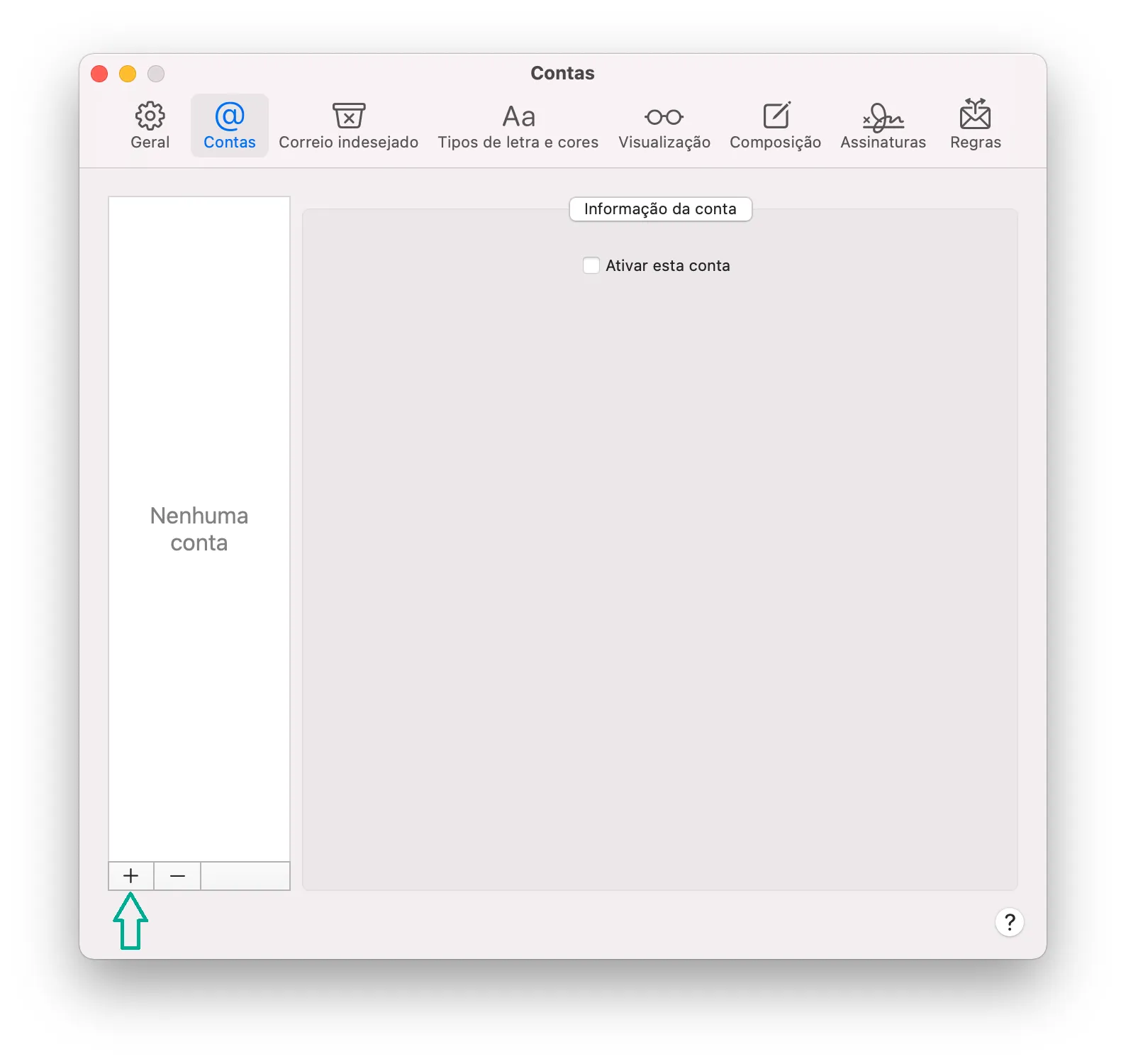
On the Accounts tab, click + to add an account.
- 3
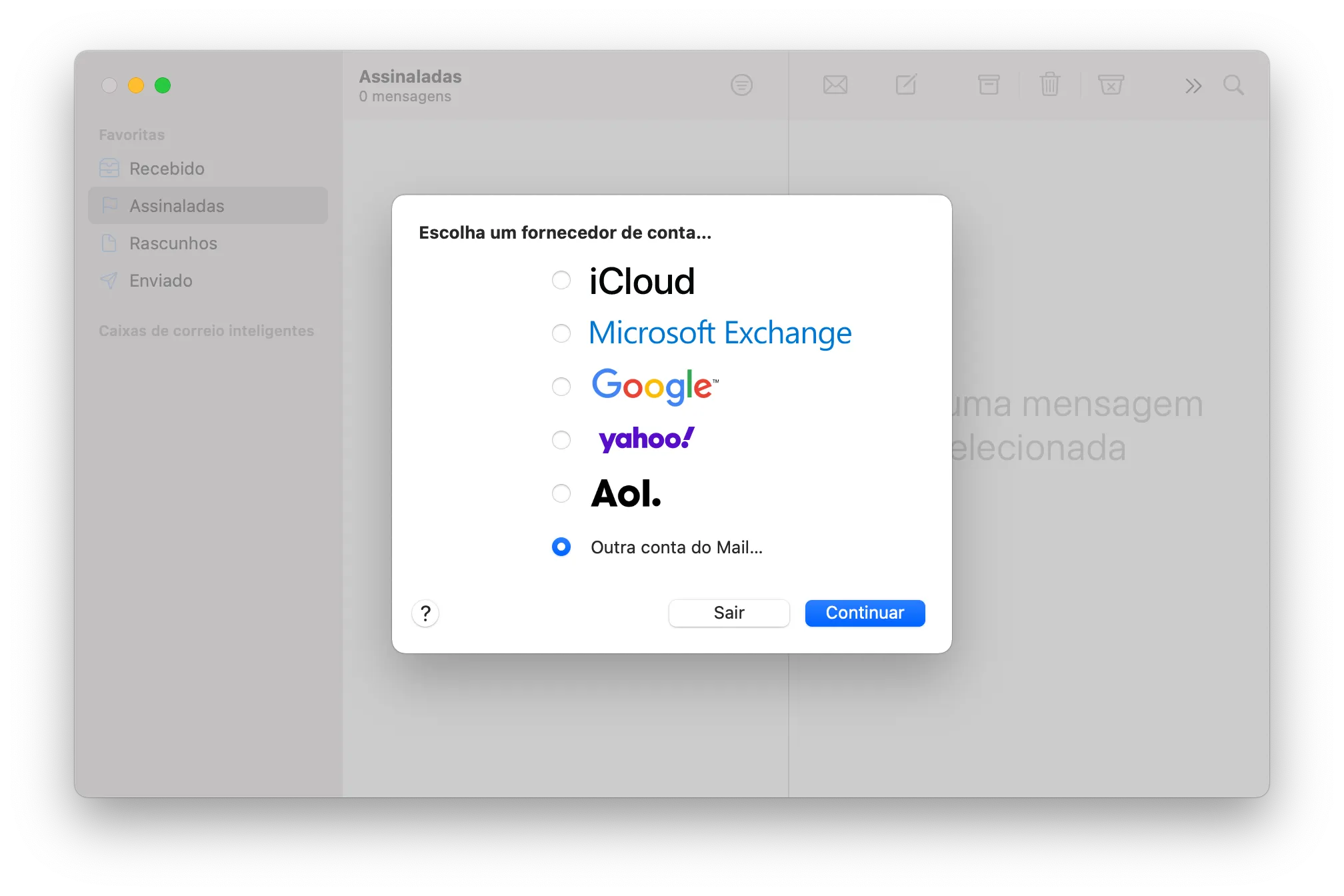
Select Other Mail Account.
- 4
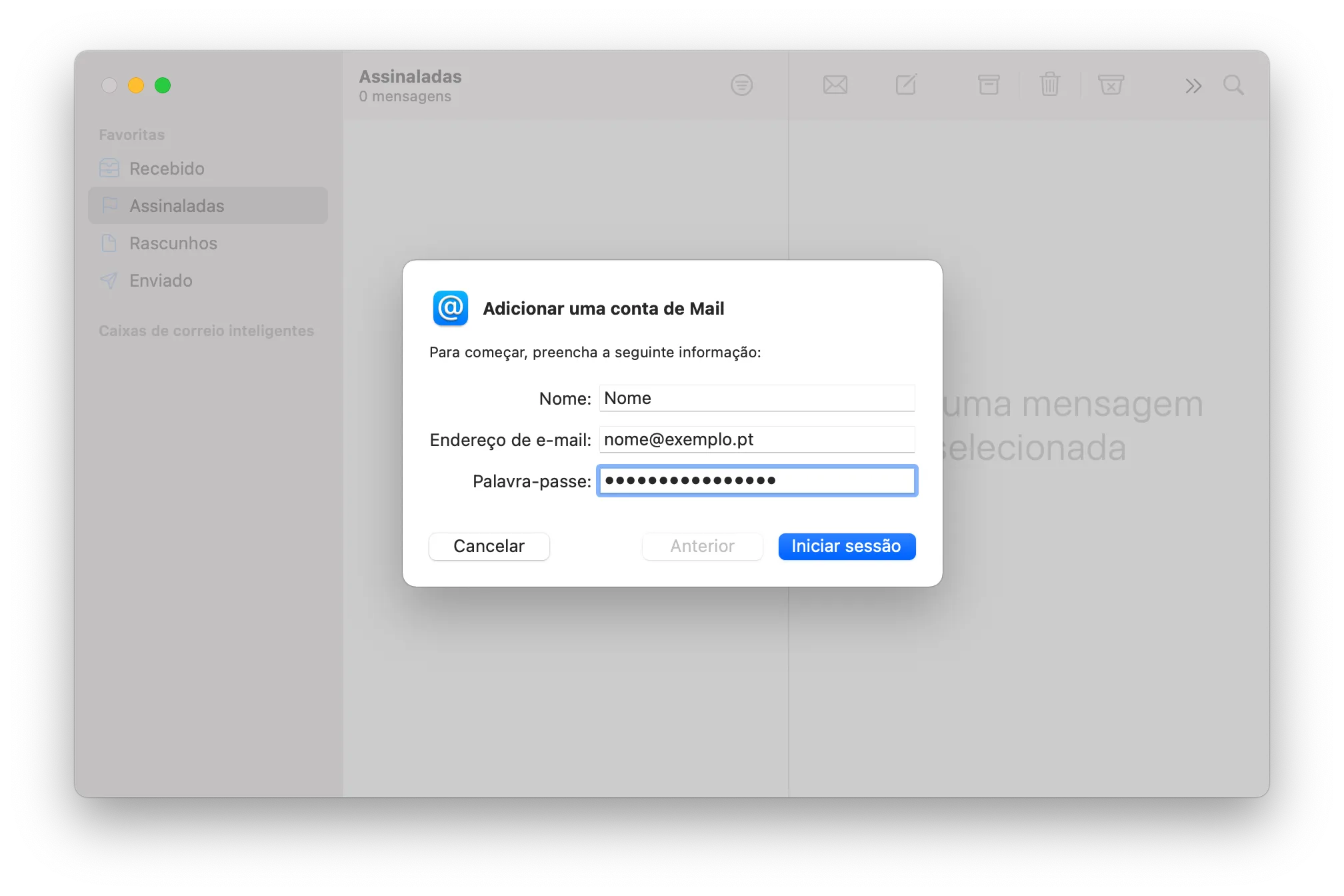
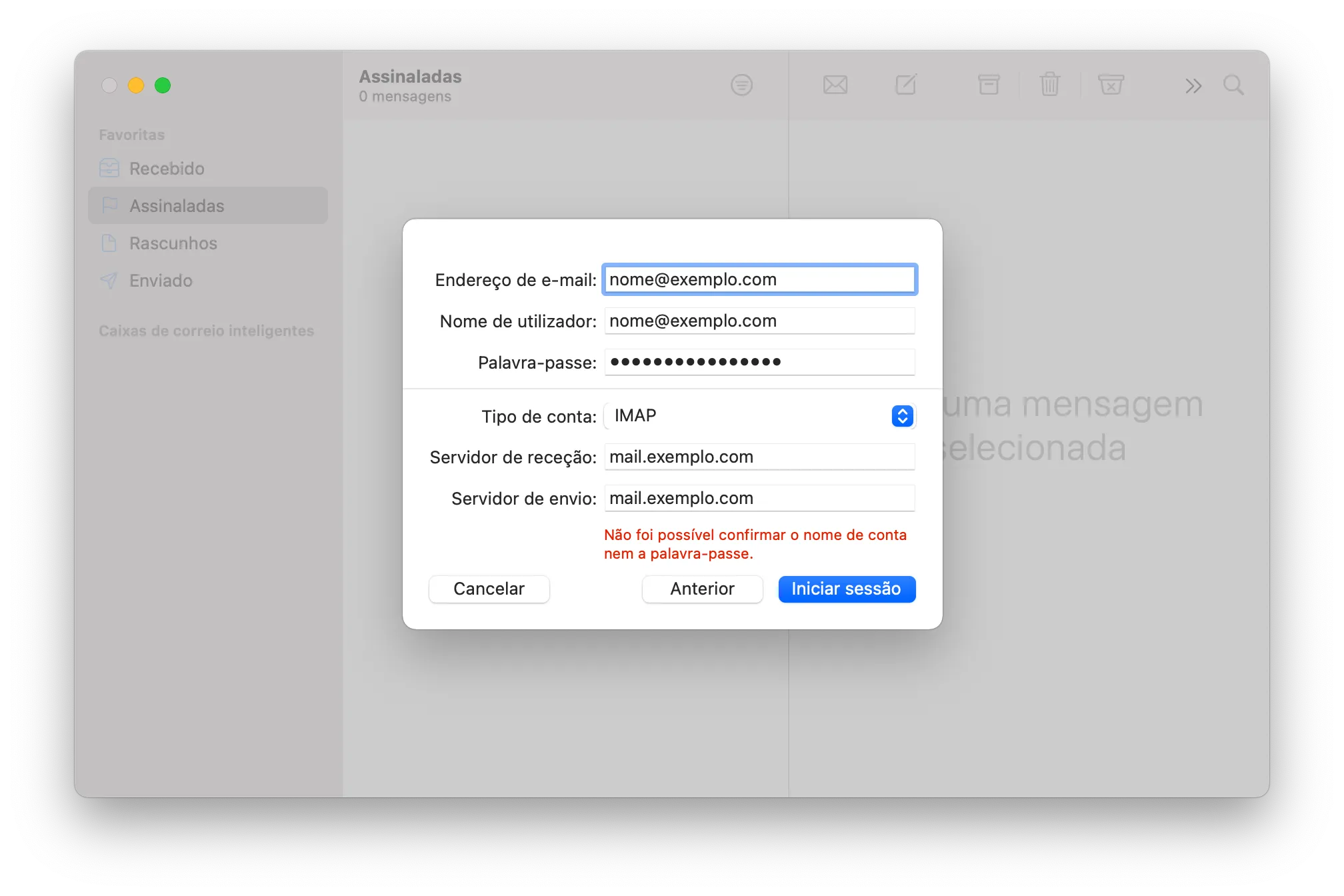
Enter your name, email address and password and click Sign In.
- 5
Sign-in won't complete straight away and new fields appear. Fill in the incoming and outgoing servers as shown.
- 6
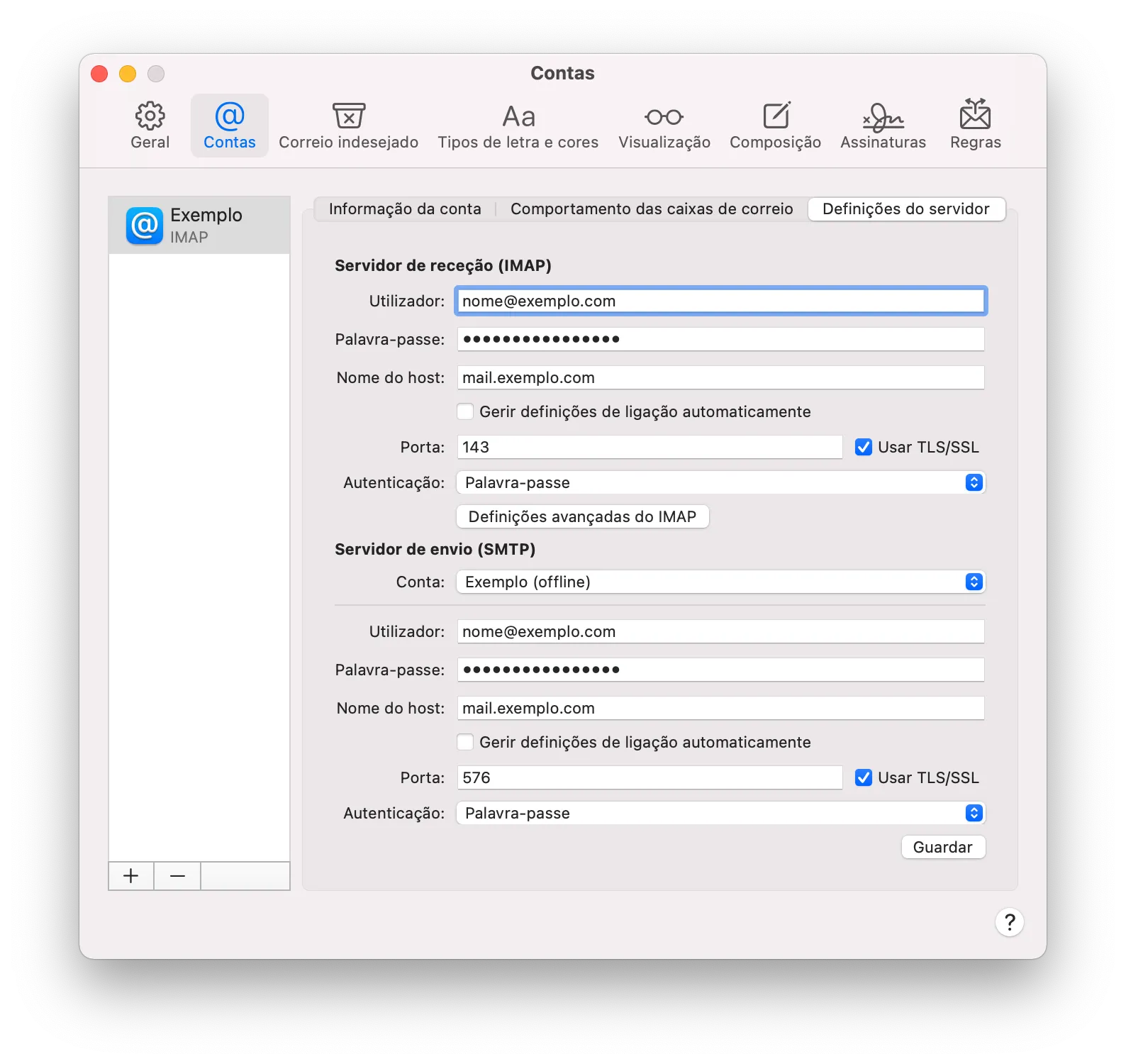
Under Server Settings, check the ports and enable Use TLS/SSL. Click Save.
Settings
Use the details we sent you when we created the account. The usual values are:
- Username: your full email address (e.g. name@yourdomain.com)
- Incoming server (IMAP): mail.yourdomain.com · port 993 (SSL/TLS) or 143 (STARTTLS)
- Outgoing server (SMTP): mail.yourdomain.com · port 465 (SSL/TLS) or 587 (STARTTLS)
- Authentication: normal password, with the same username and password as incoming